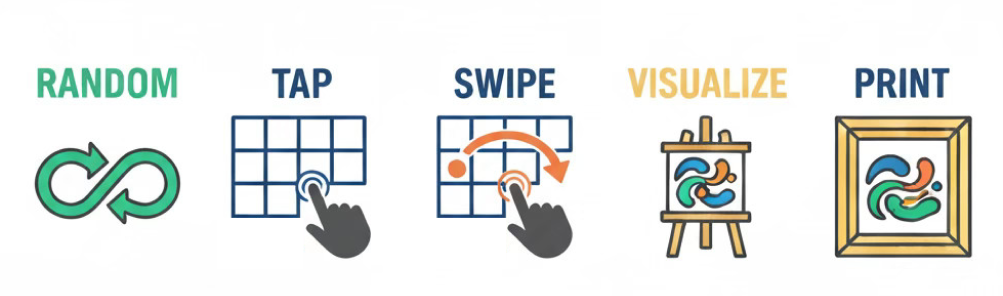
The Canvas Creator has 70 layers of brushstrokes under a 4x3 grid. The layers of each 12 grid sections can be individually clicked through. Press the RANDOM button to get inspiration.
When you find a random combination that you like then customize using the built in features.
TAP/CLICK into the 3 x 4 grid sections to pass through the strokes and choose ones that you like with your color pallet.
Touch a grid cell and SWIPE to the adjacent cell to connect brushstrokes. It will change the adjacent cell
to the same image group as the first. Connecting brushstrokes helps to bring unity to your work.
Click BLEND to experiment with different blend options. This will open a dropdown with the various blend options. Select a blend option that you like. Change the intensity and variance to further customize your artwork. Important: Click the blend button to close the blend options so you can have access to the rest of the toolbar.
Click SELECT A STAMP to add a stamp overlay to your artwork. Size the stamps by dragging one of the white circles on the corners. Rotate the stamp by clicking the black circle and turn the stamp as you would like. Click ADD STAMP to integrate the stamp into your artwork. To remove the stamp, highlight it then click DELETE STAMP or press delete on your keyboard. To unselect a stamp, click on the matte or frame.
Both BLEND and STAMPS have an ON/OFF toggle. Turning BLEND off will remove blend from your design. Turning STAMPS off will lock the stamps into place and allow you to tap and swipe the grid cells beneath. This allows you to refine the color under your stamps.
Click SAVE to add your artwork to the GALLERY at the bottom of the page. In the GALLERY, select a saved painting to view. Click CONTINUE EDITING to return the painting to the canvas to further customize it or to order a print. You can also DELETE the artwork. CLOSE the artwork popup to keep it in the gallery.
Click VISUALIZER to see your artwork in a variety of rooms. Inside the visualizer, click room 1,2, or 3. Click FRAME to view your artwork as a matted, framed print.
Click REVERSE if you accidentally pass a grid cell image. This will make you move backwards throught the image layers so you can back up to the image you passed. Click REVERSE again to pass forward through the grid cell images.
Click CLEAR to clear the canvas.
Click DOWNLOAD to download a free image of your artwork on your device. Share it on social media.
When you're finished designing, choose which type of print you would like and add it to the cart.