HOW TO USE THE CANVAS CREATOR
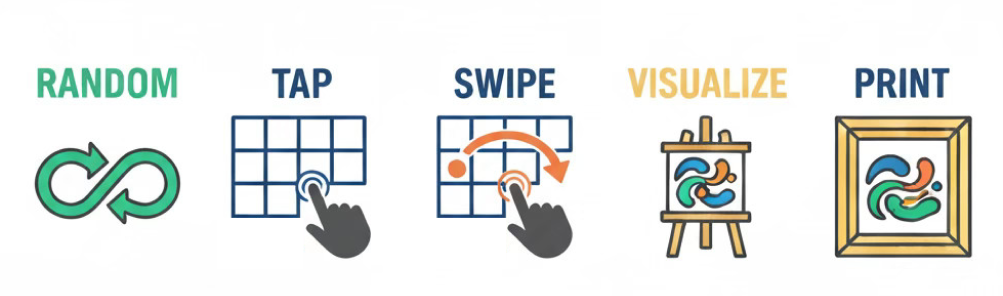
Canvas Creator: How to Create Your Masterpiece
How do I start painting on the Canvas Creator?
It's simple! The canvas is divided into a 12-cell grid (4x3). Each of these cells contains 69 unique, hand-painted images. Simply click or touch anywhere within a specific cell area to cycle through the different brushstrokes and textures available for that spot.
What is "Swipe Connect" and how do I use it?
Swipe Connect is a powerful feature that allows you to instantly bridge cells. Simply touch or click a cell you like, then swipe or drag your finger/mouse to an adjacent cell. The second cell will automatically update to match the generative "DNA" of the first, creating a perfectly seamless transition between them.
How do I "connect" the brushstrokes manually?
As you click through the 69 images in each cell, you'll see that many are designed to flow into the neighboring cells. By experimenting with different combinations in adjacent areas, or using the Swipe Connect gesture, you can create a seamless, flowing abstract composition that looks like a single, unified painting.
What does the "Reverse" button do?
The Reverse button allows you to go backward through the 69 image options in a cell. If you accidentally click past a brushstroke you really liked, simply hit Reverse and click the cell again to find it.
Can I start over if I don't like my design?
Yes. You can use the "Clear Canvas" button to reset all 12 cells at once and start with a fresh, blank frame. If you just want to change one specific area, simply keep clicking that cell until you find a new image that fits your vision.
What is the "Rotate Image" feature for?
Rotating your image can give you an entirely new perspective on your abstract work. Sometimes a composition that looks good horizontally takes on a completely different energy when viewed vertically. This helps you decide the final orientation before you place an order.
Is there a "Free Image Download" option?
Yes. Once you are happy with your design, you can use the "Free Image Download" button to save a version of your artwork to your device for personal use or to share on social media.
How do I turn my digital creation into a physical print?
Once your masterpiece is finished, use the "Select Product" dropdown menu right on the Canvas page. You can choose from various sizes of high-quality Art Prints or professional Gallery Canvases. Once selected, click "Add to Cart" to proceed to checkout.
Why do the images sometimes take a moment to load?
Because every one of the 828 possible images (69 per cell) is a high-resolution, 300 DPI digital capture of a real painting, there is a lot of data being handled. Giving the page a few seconds to load ensures that every brushstroke appears in crisp, gallery-quality detail.